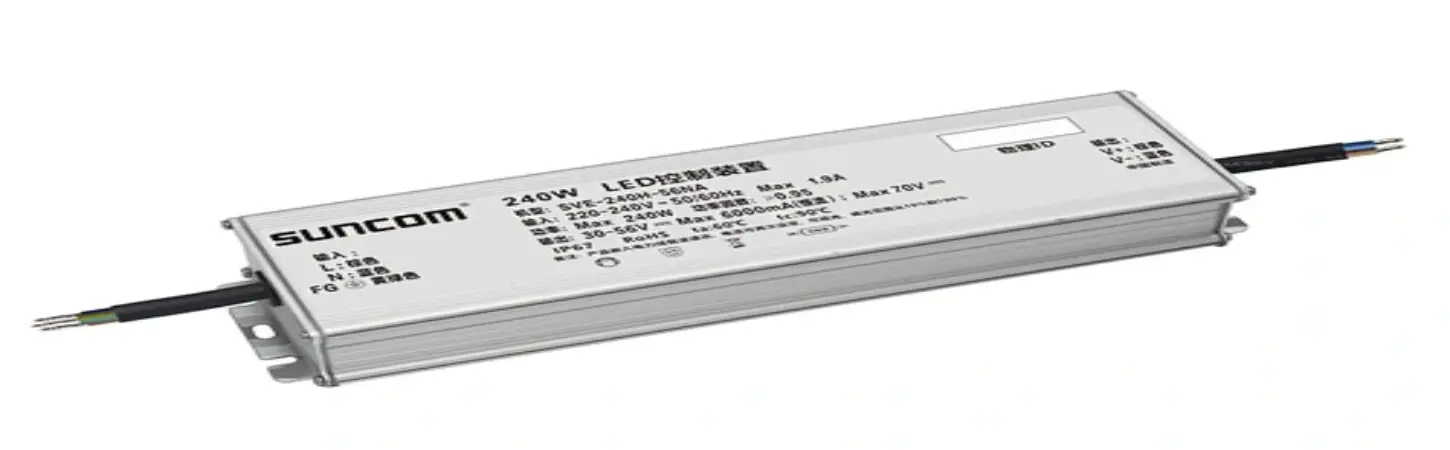
How to Install LED Power Supply
2024-02-06
It doesn't matter what kind of business or organization you run, power supplies are an essential part of your operation. If your office computers are having trouble turning on or your industrial machines keep failing, a faulty or dying power supply may be responsible.
If you need to replace a power supply that has gone bad or install a new one for your facility, knowing how to install a power supply is a valuable skill.
Our decades of experience and electrical engineering knowledge allowed us to craft a guide on how to install a power supply. Check out this article for all things power supply installation related!
How Do I Know if I Need a New Power Supply?
Determining whether you need a new power supply involves observing certain signs and symptoms. Here are some indicators that suggest it might be time to consider replacing your power supply:
1.Random Shutdowns or Restarts: If your computer or other electronic devices experience unexpected shutdowns or restarts, it could be a sign of power supply issues.
2.Unusual Noises: Strange noises emanating from the power supply unit, such as buzzing, whining, or grinding sounds, may indicate internal problems.
3.Overheating: Excessive heat produced by the power supply can be a red flag. If you notice unusually high temperatures or burning smells, it's advisable to investigate further.
4.Inconsistent Power Output: Fluctuations in power, leading to flickering lights or unstable device performance, may suggest a failing power supply.
5.Failure to Power On: If your computer or device refuses to turn on despite other components working fine, a faulty power supply could be the culprit.
6.Visual Inspection: Physically inspect the power supply for any signs of damage, such as burnt components, bulging capacitors, or a buildup of dust, which can hinder proper functioning.
7.Upgrading Components: When adding new hardware components to your system, especially power-hungry ones like a high-end graphics card, you might need a more powerful power supply to accommodate the increased load.
8.Age of the Power Supply: Like any electronic component, power supplies have a limited lifespan. If your power supply is several years old, it may be more prone to failure.
2.Unusual Noises: Strange noises emanating from the power supply unit, such as buzzing, whining, or grinding sounds, may indicate internal problems.
3.Overheating: Excessive heat produced by the power supply can be a red flag. If you notice unusually high temperatures or burning smells, it's advisable to investigate further.
4.Inconsistent Power Output: Fluctuations in power, leading to flickering lights or unstable device performance, may suggest a failing power supply.
5.Failure to Power On: If your computer or device refuses to turn on despite other components working fine, a faulty power supply could be the culprit.
6.Visual Inspection: Physically inspect the power supply for any signs of damage, such as burnt components, bulging capacitors, or a buildup of dust, which can hinder proper functioning.
7.Upgrading Components: When adding new hardware components to your system, especially power-hungry ones like a high-end graphics card, you might need a more powerful power supply to accommodate the increased load.
8.Age of the Power Supply: Like any electronic component, power supplies have a limited lifespan. If your power supply is several years old, it may be more prone to failure.
Power Supply Installation Challenges
While installing a new power supply is generally a straightforward process, there are common challenges that individuals may encounter. Here are some issues you might face during power supply installation:
1.Compatibility Issues: Ensuring that the new power supply is compatible with your system's components can be challenging. Check the wattage, form factor, and connectors to match the requirements of your motherboard and other devices.
2.Cable Management: Managing and routing the cables neatly within the computer case can be tricky. Poor cable management may lead to airflow issues, increased temperatures, and difficulty accessing components.
3.Space Constraints: Some computer cases have limited space, making it challenging to install larger or non-standard power supply units. Check the dimensions of the power supply and the available space in your case beforehand.
4.Connector Confusion: Power supplies come with various connectors, and identifying the correct ones for your components can be confusing. Refer to the motherboard and device manuals to ensure proper connection.
5.Modular Cable Challenges: Modular power supplies come with detachable cables, allowing for customization. However, ensuring the right cables are connected to the appropriate components can be a challenge, and misconfigurations may cause malfunctions.
6.Static Electricity Concerns: Handling electronic components without proper anti-static precautions can lead to electrostatic discharge (ESD), potentially damaging sensitive parts. Use an anti-static wrist strap and work in an ESD-safe environment.
7.Mounting Orientation: Some power supplies have specific mounting orientations. Check the manufacturer's guidelines to ensure the power supply is installed with the fan facing the correct direction for optimal cooling.
8.Testing and Troubleshooting: After installation, it's crucial to test the system to ensure the power supply is functioning correctly. If issues arise, troubleshooting can be challenging for those unfamiliar with hardware diagnostics.
9.DIY vs. Professional Installation: While many users install power supplies themselves, those with limited technical expertise may find it beneficial to seek professional assistance to avoid potential mistakes or damage.
10.Updating Firmware/BIOS: In some cases, a new power supply may require a firmware or BIOS update for compatibility. Check the manufacturer's website for any required updates before installation.
1.Compatibility Issues: Ensuring that the new power supply is compatible with your system's components can be challenging. Check the wattage, form factor, and connectors to match the requirements of your motherboard and other devices.
2.Cable Management: Managing and routing the cables neatly within the computer case can be tricky. Poor cable management may lead to airflow issues, increased temperatures, and difficulty accessing components.
3.Space Constraints: Some computer cases have limited space, making it challenging to install larger or non-standard power supply units. Check the dimensions of the power supply and the available space in your case beforehand.
4.Connector Confusion: Power supplies come with various connectors, and identifying the correct ones for your components can be confusing. Refer to the motherboard and device manuals to ensure proper connection.
5.Modular Cable Challenges: Modular power supplies come with detachable cables, allowing for customization. However, ensuring the right cables are connected to the appropriate components can be a challenge, and misconfigurations may cause malfunctions.
6.Static Electricity Concerns: Handling electronic components without proper anti-static precautions can lead to electrostatic discharge (ESD), potentially damaging sensitive parts. Use an anti-static wrist strap and work in an ESD-safe environment.
7.Mounting Orientation: Some power supplies have specific mounting orientations. Check the manufacturer's guidelines to ensure the power supply is installed with the fan facing the correct direction for optimal cooling.
8.Testing and Troubleshooting: After installation, it's crucial to test the system to ensure the power supply is functioning correctly. If issues arise, troubleshooting can be challenging for those unfamiliar with hardware diagnostics.
9.DIY vs. Professional Installation: While many users install power supplies themselves, those with limited technical expertise may find it beneficial to seek professional assistance to avoid potential mistakes or damage.
10.Updating Firmware/BIOS: In some cases, a new power supply may require a firmware or BIOS update for compatibility. Check the manufacturer's website for any required updates before installation.
Step-by-Step Guide to Installing a New Power Supply
The installation process for an LED power supply generally comprises the following steps:
1.Identify a suitable location for the LED power supply installation, ensuring it has adequate ventilation and is distant from high-voltage sources, intense heat, and strong magnetic fields.
2.Securely mount the power supply to the chosen location using screws or provided hardware, ensuring it is firmly attached and stable.
3.Connect the input wires of the LED power supply to the AC power source, typically using a cable or wire with a plug. Ensure correct wire connections to prevent potential hazards.
4.Establish connections between the output wires of the LED power supply and the LED lights. Properly connect the positive (+) and negative (-) wires to their respective terminals on the LED light, usually designated by positive/negative or red/black markings.
5.After completing all wire connections, activate the AC power source to test the LED light. If the light fails to turn on, carefully review all connections to verify their accuracy.
6.It's crucial to adhere to the manufacturer's instructions during the LED power supply installation to ensure proper setup and minimize potential risks. If uncertainty arises regarding the installation process, seeking guidance from a licensed electrician or contacting the manufacturer is advisable.
Finding the Right Power Supply
It is well known that LEDs require constant current to operate. When you are building LED systems on your own, it is important to remember the LED driver that drives the LEDs at this constant current. Guangdong Suncom Power manufactures LED drivers for AC and DC input. Constant current drivers by Guangdong Suncom Power adhere to the same safety regulations as their power supplies and are built to last a lifetime.
Product quality is the foundation of the production enterprise’s livelihood and the cornerstone of its long-term development. Guangdong Suncom Power has always strictly implemented the ISO9001 quality management system, and has very strict requirements on the incoming inspection of raw materials, the inspection of the production process, and the inspection of finished products. We do a 100% aging test on every finished product to ensure that the quality can be satisfied by customers and the market. Let us be your helpful and speedy LED power solutions provider.
Product quality is the foundation of the production enterprise’s livelihood and the cornerstone of its long-term development. Guangdong Suncom Power has always strictly implemented the ISO9001 quality management system, and has very strict requirements on the incoming inspection of raw materials, the inspection of the production process, and the inspection of finished products. We do a 100% aging test on every finished product to ensure that the quality can be satisfied by customers and the market. Let us be your helpful and speedy LED power solutions provider.
What Type of LED Driver Should I Use? Sizing, Waterproofing, Dimming, & More
Top 10 LED Street Light Driver Manufacturers | 2024
Related Article
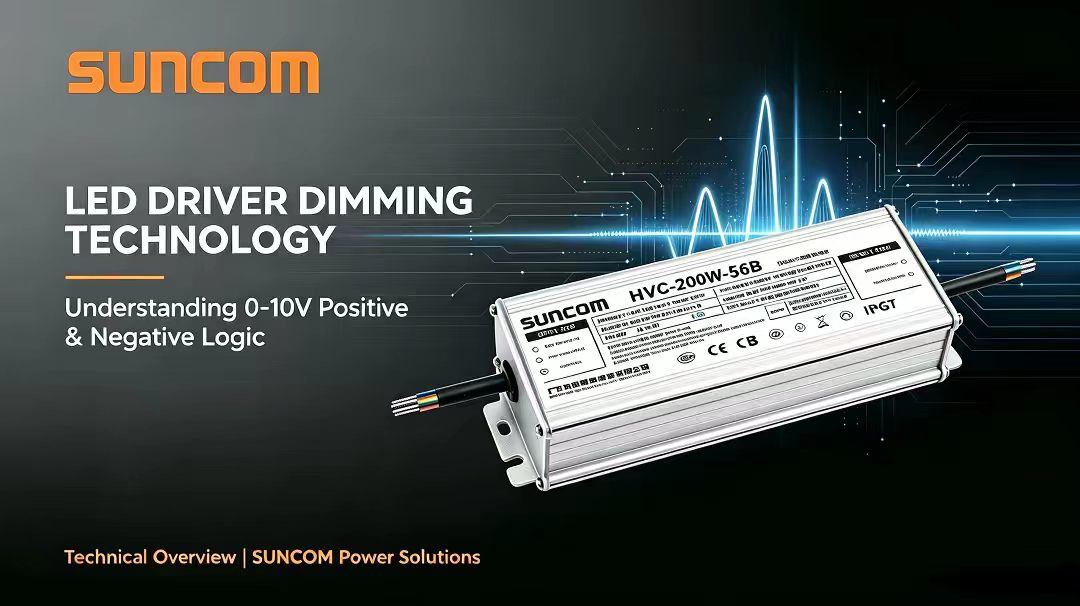
This article explains the core principles of both dimming logics, their hardware implementations, and key practical considerations for field deployment.
Understanding Positive and Negative Logic Dimming in LED Driver
Understanding LED Constant Current LED driver for Outdoor Lighting
LED Constant Current Drivers: The Core Heart of Outdoor Luminaires